Free Tuba Practice Drills for Tone, Timing, and Clean Bass-Clef Reading
Practice tuba drills from easy to hard with bass-clef notation, written and concert key information, real note playback, highlighted active notes, loop mode, tempo controls, and focused exercises built for daily practice.
Use these Tuba Practice Drills to practice articulation, intervals, arpeggios, timing, note reading, looped playback, and real tuba note audio.
Best Practice Flow
Tune first, choose a drill, play the first note, then loop the pattern until the note changes feel automatic and clean.
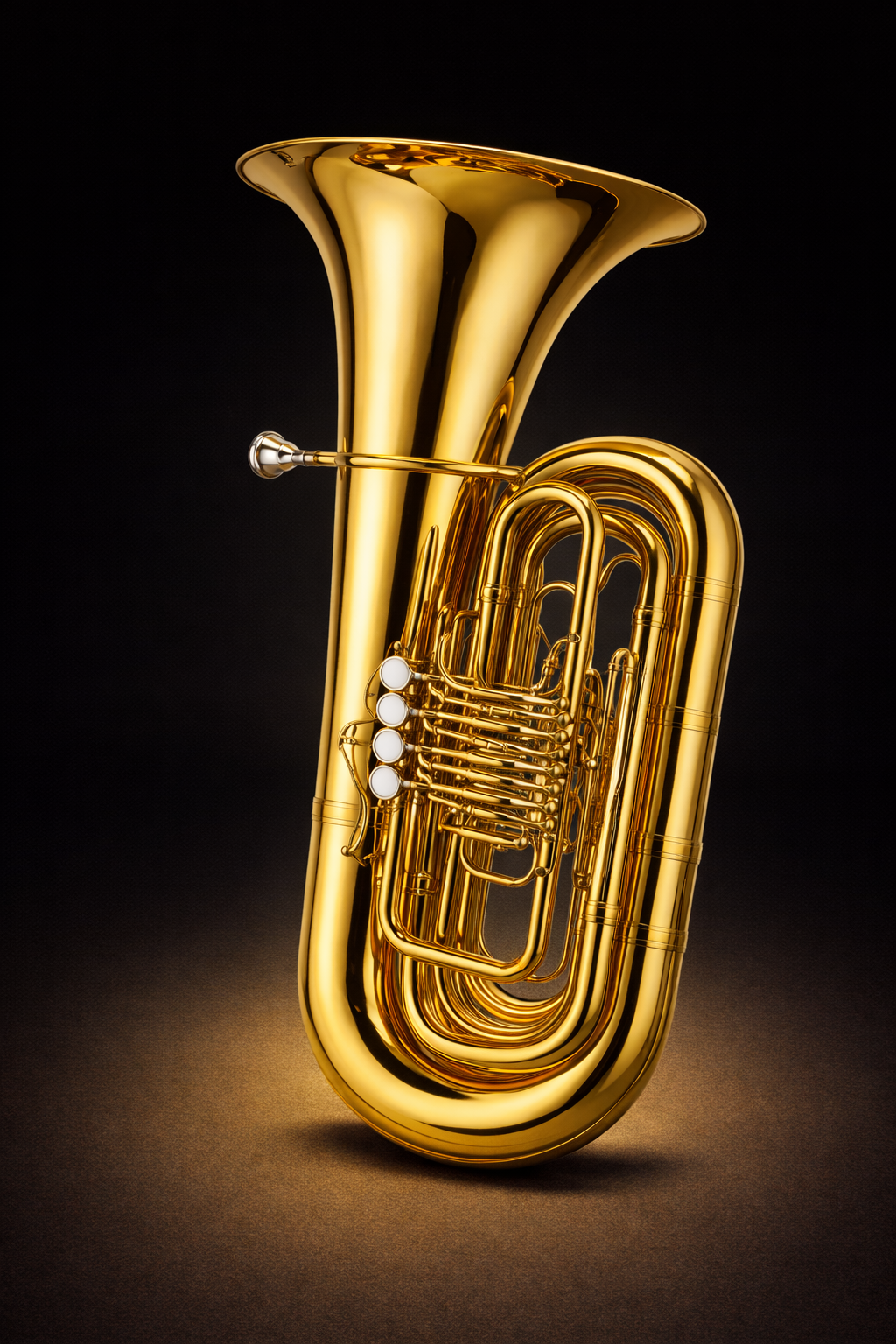
Tuba Practice
These drills focus on tone control, articulation, interval movement, arpeggio motion, bass-clef note reading, written pitch, concert pitch awareness, and clean repetition for tuba. The practice tool below is widened so the staff can show the full drill clearly.
Tuba Practice Drills
Choose a drill, follow the highlighted note, and use real audio playback to lock in timing, pitch awareness, and clean note movement. These drills use single-note lines so the page can play each note clearly.
Choose a Drill
Each card outlines a single-note tuba drill from easy to hard.
Active Drill
Ready
Select a drill to begin.
Helpful Tuba Tools
Use these tools together as a practice loop instead of treating each page as separate.
What These Drills Train
These are not random exercises. They train tone stability, note awareness, articulation, interval control, arpeggios, and repetition discipline.
Tuba Practice Drills FAQ
Quick answers for using these tuba practice drills effectively.
What is the difference between written and concert pitch?
Written pitch is what tuba players read. Concert pitch is what the note sounds like. A Tuba sounds a major second lower than written pitch.
Are these drills meant to be played one note at a time?
Yes. These drills are written as single-note lines so the audio can play one note at a time and the highlighted note stays clear.
Do these drills use pitch shifting?
No. Each note has its own audio file for more realistic playback.
Can I loop a drill?
Yes. Toggle Loop On and the drill will restart automatically until you press Stop.
Why does the staff scroll during playback?
The staff scrolls so the highlighted note stays visible while the drill plays.
Turn Tuba Practice Into a Repeatable System
Tune first, run a drill, loop the hard section, then connect the same written notes to tuba scale practice.